> ## Documentation Index
> Fetch the complete documentation index at: https://docs.tonhub.com/llms.txt
> Use this file to discover all available pages before exploring further.
# Getting Started
> Step by step configure the Tonhub extension and links for your application
## Overview
In this section, you will learn how to connect your application with Tonhub. It will allow configuring your application for convenience to authorize and make transactions in TON.
## What is TON?
You can learn basic concepts about TON blockchain [here](https://www.tonspace.co/).
## Step-by-step guide
1. Create a [Remote connector](/docs/tonhub-remote-connector).
2. Create a [session](/docs/tonhub-remote-connector#starting-a-new-session) via a connector.
3. Get an installation link for your application from the Tonhub [Link Generator](https://tonwhales.com/tools/link) or Sandbox [Link Generator](https://sandbox.tonwhales.com/tools/link).
4. Create a [Local connector](/docs/tonhub-local-connector) for processing users' actions when running as an extension.
5. Add the necessary [meta tags](/docs/meta-tags) in your application's head section.
6. Use a session for request [transactions](/docs/tonhub-remote-connector#requesting-transaction) or [signatures](/docs/tonhub-remote-connector#requesting-signature).
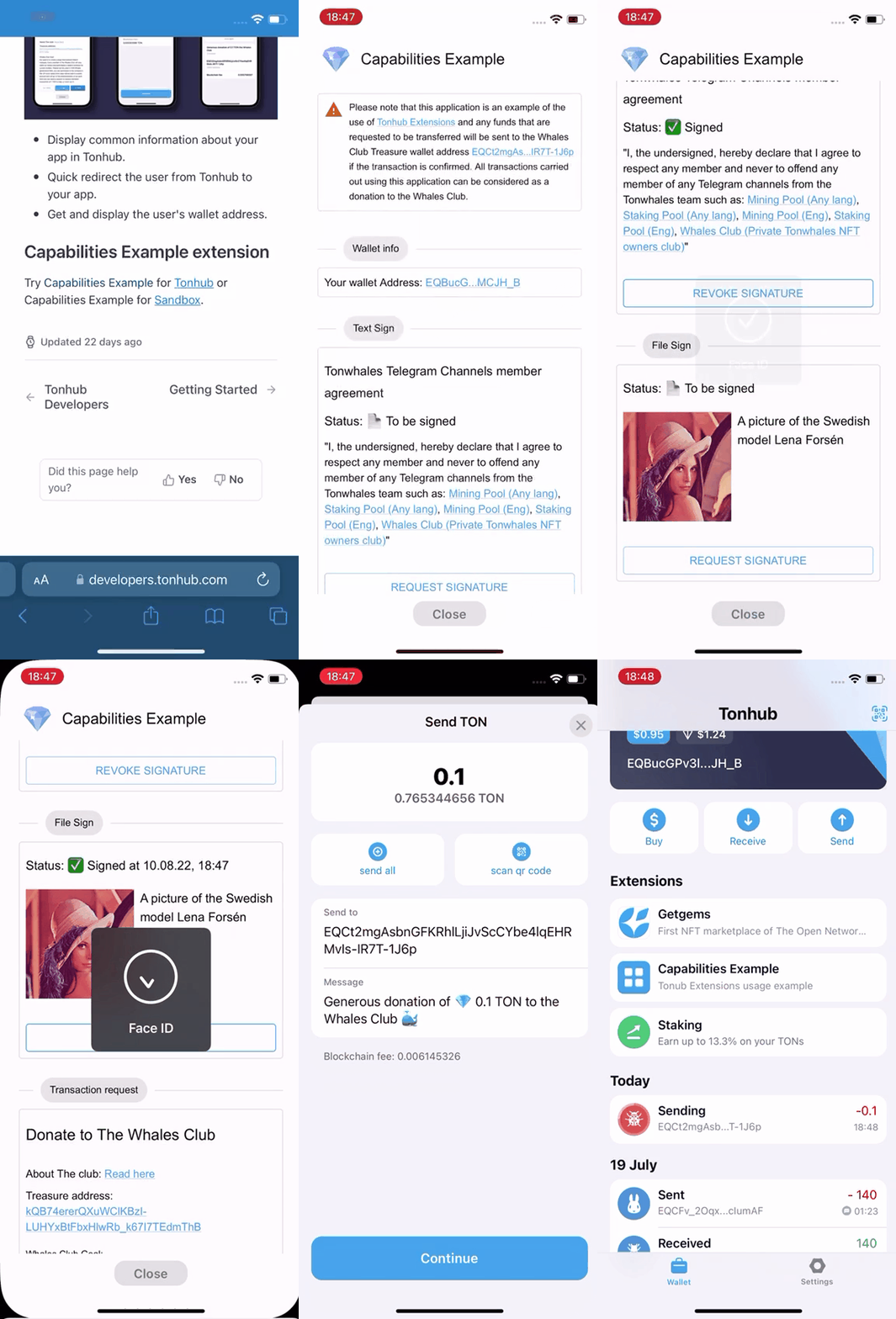
## Capabilities Example Extension
For a quick inspection try
* [Tonhub Capabilities Example](https://tonhub.com/app/te6cckEBAgEAMAABAUABAFRodHRwczovL2FwcHMudG9uaHViLmNvbS9hcHBzL2V4YW1wbGVzL2Z1bGySeowu) for [Tonhub](/docs/beta-apps)
* [Sandbox Capabilities Example](https://test.tonhub.com/app/te6cckEBAwEASgACAcgCAQAeU2FuZGJveCBFeGFtcGxlAGRodHRwczovL2FwcHMtc2FuZGJveC52ZXJjZWwuYXBwL2FwcHMvZXhhbXBsZXMvZnVsbLitW14) for [Sandbox](/docs/beta-apps).